
Large audio files are frustrating when email rejects an attachment or a podcast archive fills your storage. A good MP3 size reducer lowers the bitrate while keeping the recording useful and pleasant to hear—and it can work locally in your browser.
This guide explains what an MP3 size reducer changes, which quality to choose, and how to get a predictable result with our free MP3 Compressor.
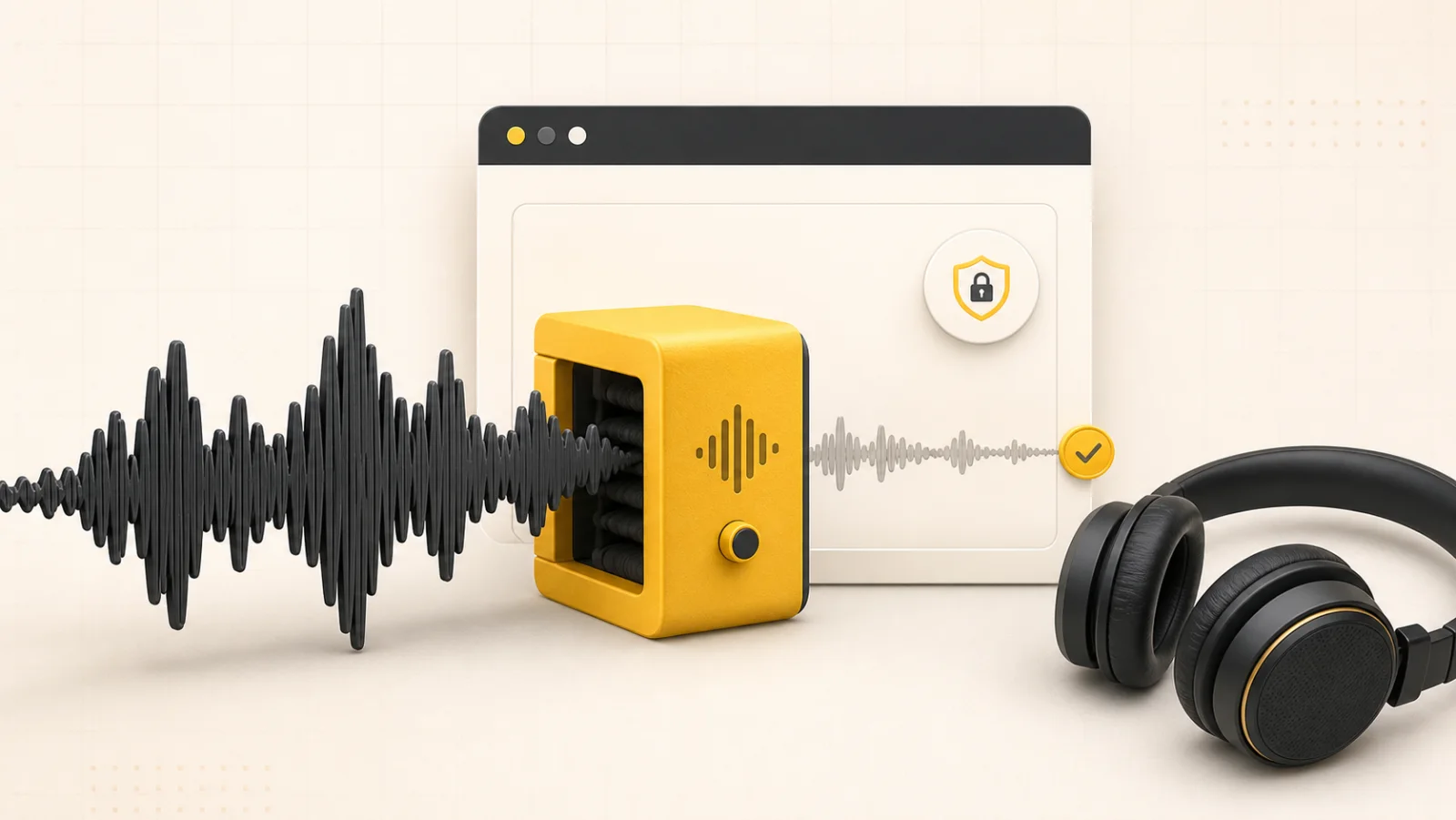
What Is an MP3 Size Reducer?
An MP3 size reducer re-encodes audio at a lower bitrate—the data used for each second of sound. A 320 kbps song needs more storage than a 128 kbps copy of equal duration.
File size is roughly bitrate multiplied by playing time. The compressor does not shorten the recording, but it stores every second more efficiently. Bitrate is therefore the practical control for music, interviews, lectures, and podcasts.
An MP3 file size reducer accepts MP3, WAV, M4A, FLAC, and OGG. It extracts audio from MP4, MOV, or WebM. Processing stays on-device, without an upload queue or server copy.
Why MP3 Files Become So Large
A high bitrate preserves detail, but speech is easier to compress than cymbals, applause, or layered music. An MP3 size reducer can make lectures and voice memos dramatically smaller while every word remains clear.
Source quality matters. The compressor has plenty to remove from a 320 kbps file but little room with a 96 kbps source. A higher output bitrate cannot restore missing detail; it only creates a larger file.
Before compressing an important recording, duplicate it and label the result with its bitrate. This prevents accidental replacement and simplifies comparisons. It helps collaborators understand why one copy is intended for listening, another for email, and the original for editing or long-term archival storage.
How to Reduce MP3 File Size in Four Steps
1. Add your audio
Open the online audio compression tool and add a file from your phone or computer. This MP3 size reducer works in the browser, so there is no upload delay.
2. Choose a quality preset
The MP3 file size reducer offers High at 192 kbps, Standard at 128 kbps, Compact at 96 kbps, and Voice at 64 kbps mono. Each preset predicts output size from the file's duration.
3. Compress and compare
Start compression, then use the before-and-after waveform player to switch between both versions at the same position. Use headphones for detailed music.
4. Download the smaller MP3
Download the result if it sounds right. If it feels thin or metallic, retry with the next-higher preset. Keep the original because lossy compression cannot be reversed.
Choosing the Best Bitrate
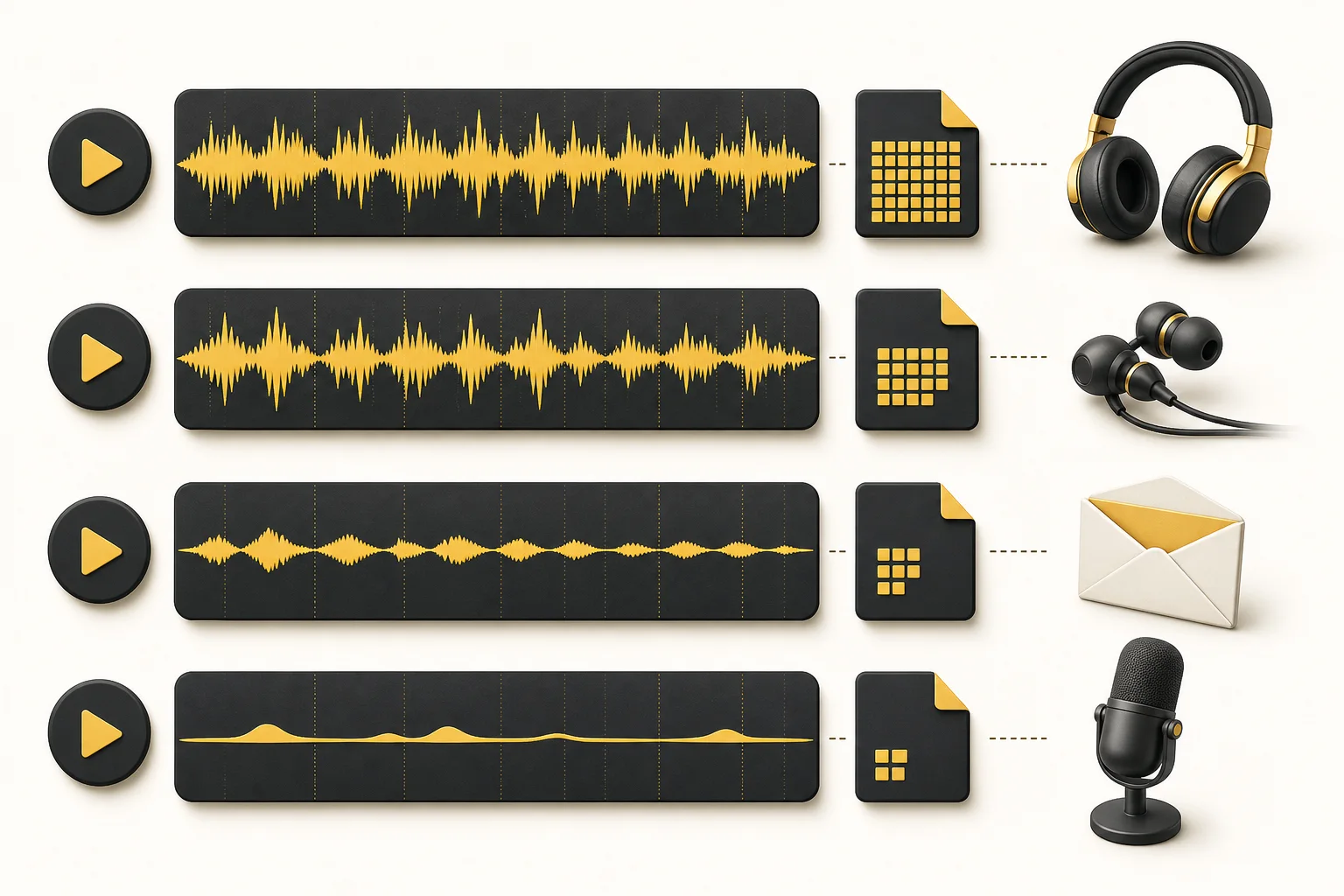
The best MP3 size reducer setting depends on the content and its destination:
| Preset | Best for | Approximate size for 60 minutes |
|---|---|---|
| High · 192 kbps | Music on quality headphones or speakers | 82 MB |
| Standard · 128 kbps | Everyday music, sharing, mixed audio | 55 MB |
| Compact · 96 kbps | Email, cloud storage, casual listening | 41 MB |
| Voice · 64 kbps mono | Podcasts, lectures, interviews, memos | 27.5 MB |
Remember that the table estimates constant playing time. Variable bitrate encoders may produce a slightly different result depending on silence, stereo complexity, and source material. Treat the prediction as a practical guide, then confirm the downloaded file before permanently deleting or replacing the original recording on your phone or computer.
For most songs, start at 128 kbps. It can cut a 320 kbps source by about 60 percent. Choose 192 kbps for complex music and 96 kbps when attachment size matters more than perfect fidelity.
For speech, the Voice preset can go lower. At 64 kbps mono, it removes unnecessary stereo data and may shrink a high-quality source by 80 to 90 percent without sacrificing intelligibility.
A Private MP3 Size Reducer Is Safer
Many tools upload audio before compression, a concern for interviews, client calls, unreleased music, and voice notes. Local processing avoids that transfer because encoding happens on your device.
An upload-based compressor must send the source, wait, and download the result. Local processing starts immediately, works on a slow connection, and continues if you disconnect after the page loads.
Common Reasons to Use an MP3 Size Reducer
- Email: Compression can bring a long recording under an attachment limit.
- Messaging: A smaller MP3 sends faster through WhatsApp, Telegram, Discord, or other chat apps.
- Podcasts: A smaller file balances download speed with clear speech on mobile data.
- Lectures: Students can keep more classes on a laptop or phone.
- Websites: Smaller audio loads faster and uses less bandwidth.
- Storage: Lower bitrates reclaim space from oversized music and voice notes.
Tips for Better Results
Begin with the highest-quality source. No compressor can recover detail discarded earlier, so avoid repeatedly encoding the same copy.
Match the preset to the content. Layered music needs more data than speech. Test cymbals, crowd noise, or strong “s” sounds.
Trust your ears as well as the number. A useful tool predicts size and lets you compare both versions, making the trade-off clear.
Frequently Asked Questions
Does reducing MP3 size lower audio quality?
Yes, lower bitrates remove information, but a well-chosen preset can make the change hard to notice. Try 64 kbps mono for speech or 128 kbps for music.
Can audio compression make a file larger?
Yes, if the output bitrate exceeds the source. Our tool disables pointless presets at or above the original MP3 bitrate.
Does an MP3 file size reducer have a limit?
The browser tool has no enforced upload limit. Practical limits depend on your device, while streamed processing helps with long recordings.
Does it work on mobile?
Yes. It works in modern browsers on iPhone, Android, and desktop. No app or account is required.
Reduce Your MP3 Now
The right compressor makes the quality trade-off clear. Choose a bitrate, check the predicted size, and compare both tracks. Try the free VideoCompressors MP3 Compressor to shrink audio privately—no registration, watermark, upload, or server queue.