
Trying to share a video on Discord but hitting the 8MB file limit? Need to send a video via email but it's too large? You're not alone. Video compression is one of the most common challenges we face when sharing videos online. In this guide, I'll walk you through exactly how to compress videos using our free online Video Compressor tool—no software installation required, and your videos never leave your device.
Why Compress Videos?
Before we dive in, here's why video compression matters:
- Discord: Free users have an 8MB limit (10MB for newer accounts), Nitro Basic allows 50MB
- WhatsApp: Maximum 16MB for video sharing
- Email: Most email providers cap attachments at 25MB
- Storage: Compressed videos save valuable space on your phone or computer
Our Video Compressor offers several key advantages:
- 100% Browser-Based: Your video stays on your device—nothing gets uploaded to any server
- GPU Accelerated: Uses WebCodecs API for up to 10x faster compression
- Completely Free: No watermarks, no registration, no limits
Let's get started!
Step 1: Upload Your Video
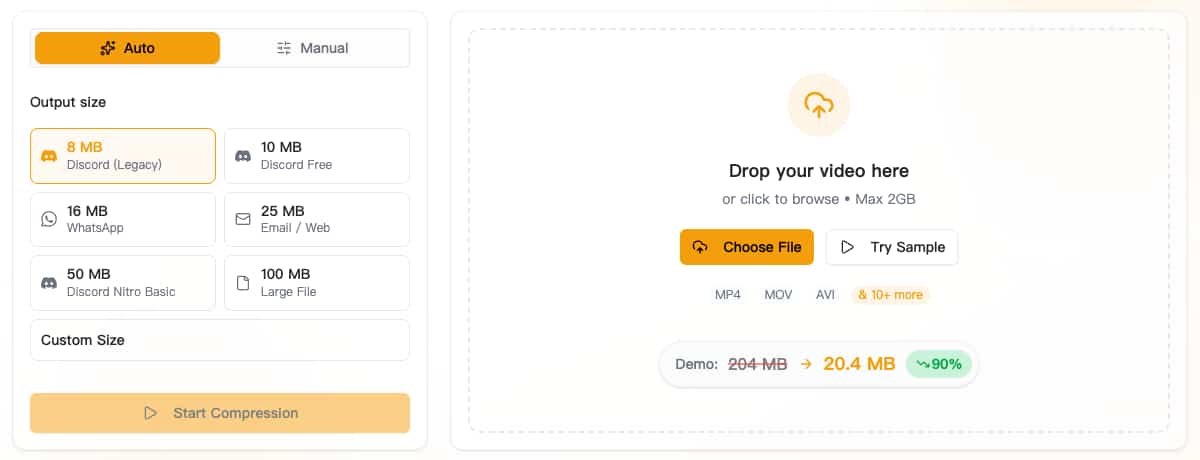
Head to our Video Compressor and you'll see a clean, intuitive interface. On the left is the settings panel, and on the right is the upload area.
To upload your video:
- Drag and drop your video file directly onto the upload area, or
- Click "Choose File" to browse your computer
- You can also click "Try Sample" to test the tool with a demo video
Supported formats include:
- MP4, MOV, WebM, MKV, AVI, WMV, FLV, and more
- Maximum file size: 2GB
Once uploaded, you'll see a preview of your video with key metadata displayed at the bottom:
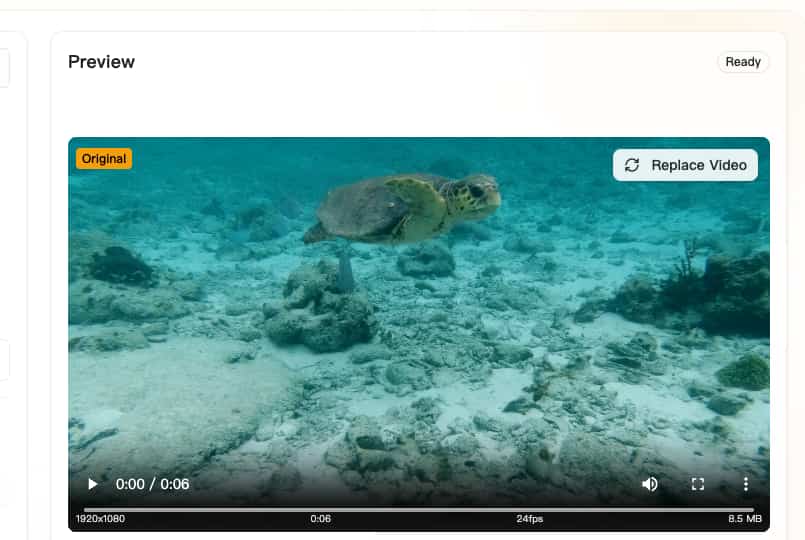
The metadata bar shows:
- Resolution (e.g., 1920x1080)
- Duration (e.g., 0:06)
- Frame Rate (e.g., 24fps)
- Original File Size (e.g., 8.5 MB)
Step 2: Choose Your Compression Mode
The Video Compressor offers two modes: Auto and Manual.
Auto Mode — Quick & Easy
Auto mode is perfect for most users. Simply select a target file size based on where you want to share your video.
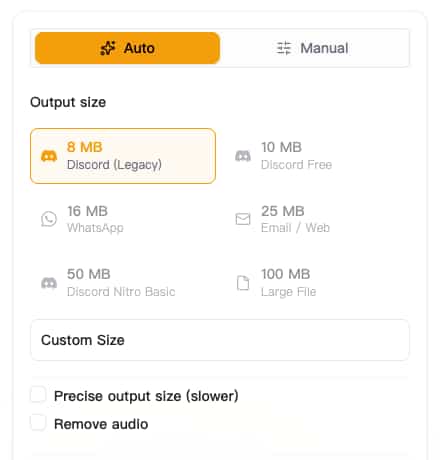
Available Presets:
| Preset | Target Size | Best For |
|---|---|---|
| Discord (Legacy) | 8 MB | Discord free users (old limit) |
| Discord Free | 10 MB | Discord free users (new limit) |
| 16 MB | WhatsApp video sharing | |
| Email / Web | 25 MB | Email attachments, web uploads |
| Discord Nitro Basic | 50 MB | Discord Nitro Basic subscribers |
| Large File | 100 MB | General file storage |
Custom Size Option:
Need a specific file size? Click "Custom Size" to reveal a slider where you can set any target size from 0.1 MB up to your original file size.
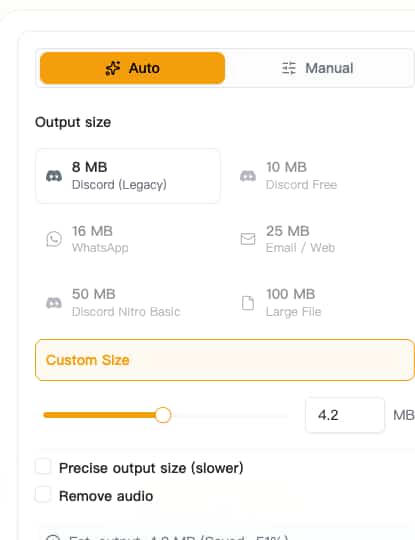
Additional Options:
- Precise output size (slower): Enable this if you need the exact target size. Uses FFmpeg engine which is slower but more accurate.
- Remove audio: Strip the audio track to reduce file size further—great for silent video loops or GIFs.
Manual Mode — Full Control
For users who need granular control, Manual mode offers advanced settings organized into three tabs. This mode is ideal when you need to fine-tune compression parameters for specific requirements.
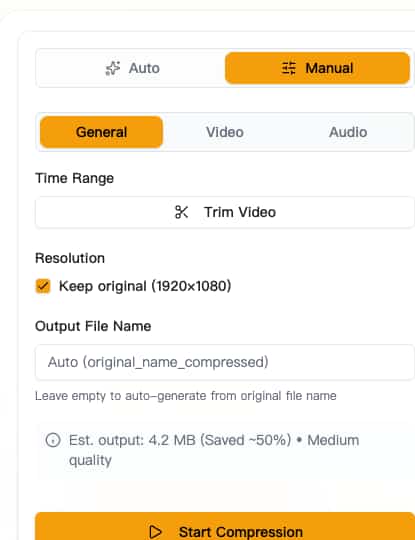
General Settings Tab:
The General tab gives you control over the basics:
- Time Range: Trim your video by setting precise start and end times. This is incredibly useful when you only need a specific clip from a longer video. Use the visual timeline to select exact trim points.
- Resolution: Change the output resolution with an optional aspect ratio lock. You can scale down a 4K video to 1080p or 720p for significant file size reduction while maintaining visual quality on smaller screens.
- Output File Name: Customize what the compressed file will be named. If left empty, the tool automatically appends "_compressed" to your original filename.
Video Settings Tab:
The Video tab is where the magic happens:
-
Video Codec: Choose between:
- H.264: The universal standard. Works everywhere—every device, every platform, every player. Best choice for maximum compatibility.
- H.265 (HEVC): Offers 25-50% better compression than H.264 at the same quality level. However, not all devices support H.265 playback, so use this when you know your target device is compatible.
-
Compression Method (choose one):
- CRF (Constant Rate Factor): Quality-based compression. Range is 18-51 where lower numbers mean higher quality. CRF 23 is considered visually lossless, while the default CRF 29 provides roughly 50% file size reduction with acceptable quality.
- Bitrate: Fixed bitrate mode. Useful when you need predictable file sizes. Options range from 500 Kbps (suitable for 360p) to 50 Mbps (suitable for 4K).
-
Frame Rate: Keep the original frame rate or reduce it. Lowering frame rate from 60fps to 30fps can significantly reduce file size. Available options: Original, 5, 10, 15, 24 (cinema standard), 30, and 60 fps.
Audio Settings Tab:
Control how audio is handled:
- Remove Audio: Toggle to completely strip the audio track. This can reduce file size by 10-20% depending on the original audio quality. Perfect for silent GIFs or background videos.
- Audio Codec: Currently supports AAC, which offers the best quality-to-size ratio for compressed audio.
- Audio Bitrate: Choose from 64 kbps (voice/podcast quality) to 320 kbps (near CD quality). For most video sharing, 128 kbps offers a good balance.
Step 3: Start Compression
Once you've configured your settings, click the yellow "Start Compression" button.
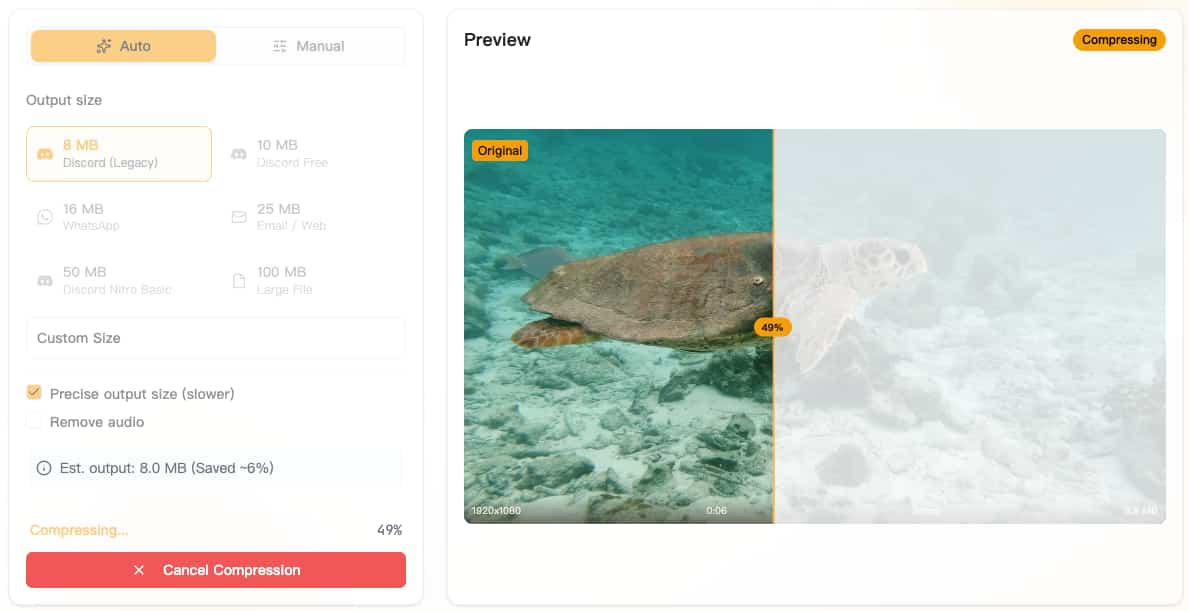
You'll see:
- A progress bar showing compression percentage
- Status stages: Analyzing → Encoding → Muxing
- The browser tab title updates with progress (e.g., "49% Compressing...")
Compression Speed: Thanks to GPU acceleration via WebCodecs, a typical 5-minute 1080p video compresses in about 30-60 seconds on modern browsers (Chrome 94+, Edge 94+, Safari 16.4+).
Step 4: Download Your Compressed Video
When compression completes, you'll see a success message with a before/after comparison:
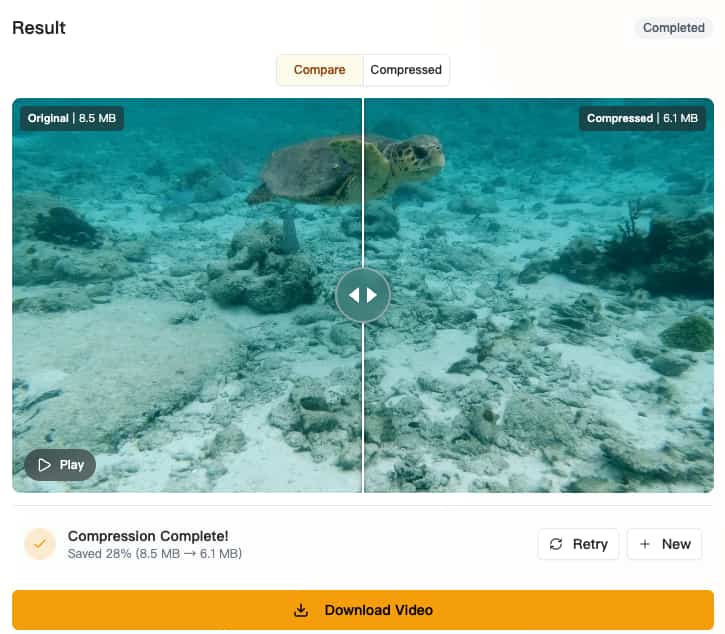
The result panel shows:
- Compare View: Drag the slider to compare original vs. compressed quality side-by-side
- Compression Stats: Shows how much you saved (e.g., "Saved 28% (8.5 MB → 6.1 MB)")
- Compressed Tab: View just the compressed video
Action Buttons:
- Download Video: Save your compressed video to your computer
- Retry: Re-compress with different settings
- New: Start over with a new video
Tips for Best Results
When to Use Auto Mode
- You have a specific platform in mind (Discord, WhatsApp, Email)
- You want quick results without tweaking settings
- The preset sizes match your needs
When to Use Manual Mode
- You need to trim the video
- You want to change resolution or frame rate
- You need specific codec settings (H.265 for better compression)
- You want precise control over quality vs. file size
Recommended Settings by Use Case
| Use Case | Mode | Recommended Setting |
|---|---|---|
| Discord sharing | Auto | Discord (Legacy) 8MB or Discord Free 10MB |
| WhatsApp video | Auto | WhatsApp 16MB |
| Email attachment | Auto | Email/Web 25MB |
| Archive storage | Manual | H.265 codec, CRF 28-32 |
| Social media | Manual | H.264 codec, CRF 23-26 |
| Maximum compression | Manual | H.265, CRF 35+, Remove audio |
Quality vs. Size Trade-offs
- CRF 18-23: Near-lossless quality, larger files
- CRF 24-28: Good quality, balanced compression
- CRF 29-33: Noticeable quality loss, significant size reduction
- CRF 34+: Lower quality, maximum compression
Frequently Asked Questions
Is my video uploaded to a server? No! All processing happens locally in your browser. Your video never leaves your device.
What browsers are supported?
- Chrome 94+ and Edge 94+ (GPU-accelerated)
- Safari 16.4+ (GPU-accelerated)
- Firefox (uses FFmpeg fallback, slightly slower)
Is there a file size limit? You can compress videos up to 2GB. For files over 1GB, expect longer processing times.
Why is my compressed file larger than expected? If your source video is already heavily compressed or very short, further compression may not reduce size significantly. Try using a smaller target size or CRF value.
Start Compressing Now
Ready to shrink your videos? Our Video Compressor is completely free, requires no registration, and keeps your videos 100% private. Whether you're sharing gaming clips on Discord, sending family videos on WhatsApp, or just clearing up storage space, we've got you covered.